Here’s how you fix it.
- Step 1: Launch from recovery media. Boot your machine from a recovery CD or bootable recovery media.
- Step 2: Click NEXT.
- Step 3: Click on REPAIR YOUR COMPUTER.
- Step 4: Choose COMMAND PROMPT.
- Step 5: Run this command.
- Step 6: Select YES.
- Step 7: Restart computer.
- Step 8: Click the EASE OF ACCESS button.
How do I make a password recovery disk?
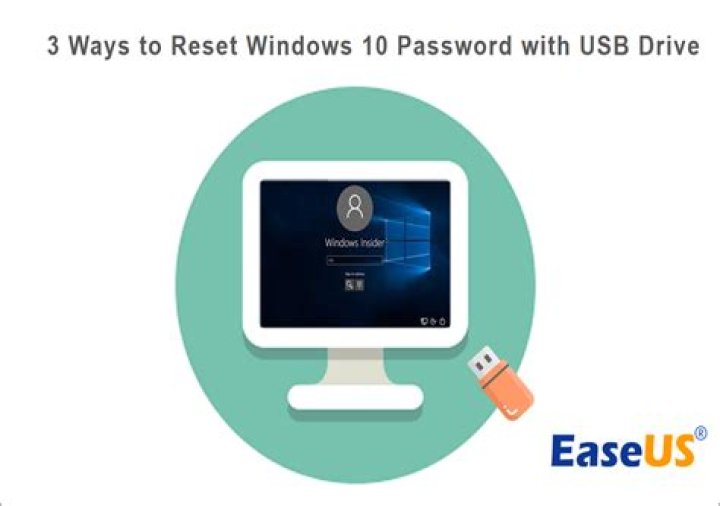
Create the Password Reset Disk
- Click.
- Click User Accounts and Family Safety.
- Click User Accounts.
- Insert either a USB flash drive or a floppy disk.
- Click Create a password reset disk in the left pane.
- When the Forgotten Password Wizard appears, click Next.
What can I use if I don’t have a password reset disk?
- Click Start Menu and choose Control Panel.
- Select User Accounts and Family Safety.
- Select User Accounts.
- From the left-side panel click Create a password reset disk.
- Forgotten Password Wizard will start.
- Click Next.
- Choose a drive to store the password key file on.
- Click Next.
How do I create a password reset disk without a password?
How do I find my system administrator?
Method 1: Check for administrator rights in Control Panel Open Control Panel, and then go to User Accounts > User Accounts. 2. Now you will see your current logged-on user account display on the right side. If your account has administrator rights, you can see the word “Administrator” under your account name.
How do I set a password for a built in administrator?
First, type net user administrator /active:yes and press Enter. Then type net user administrator , where is the actual password you want to use for this account. Because the local Administrator account is a special account, you can’t use it for everyday activities in Windows 10.